Set Busy VI
- Updated2025-07-30
- 3 minute(s) read
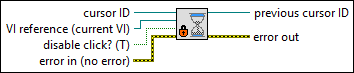
Changes the appearance of the cursor on the front panel of a VI to the system busy cursor. You also can use this VI to disable the mouse and keyboard on the front panel.
Use the Unset Busy VI to change the cursor back to the default LabVIEW cursor and to enable the mouse and keyboard again. Using the Set Busy VI is similar to using the Set Cursor VI and wiring 1 to the icon input.
(Real-Time Module) You cannot use this VI in VIs that run on RT targets.
Inputs/Outputs
 cursor ID
—
cursor ID
—
cursor ID is a reference to the cursor you want to use on the front panel of the VI. The default is the system busy cursor. Use the Create Cursor From File VI to obtain a reference to a cursor. If the cursor reference is invalid, LabVIEW changes the cursor to the default LabVIEW cursor and returns control of the cursor to LabVIEW.  VI reference (current VI)
—
VI reference (current VI)
—
VI reference is a reference to the VI for which you want to change the cursor. The default is a reference to the current VI. You can use the Open VI Reference function to obtain a reference to another VI. This input is useful if multiple front panels are open, but you want to change the cursor in only one front panel. If the front panel of the VI for which you want to change the cursor is not open, this VI returns an error.  disable click? (T)
—
disable click? (T)
—
If disable click? is TRUE (default), the VI disables the mouse and keyboard on the front panel. You must use the Unset Busy VI to enable the mouse and keyboard again. If you disable the mouse and keyboard on the front panel, the user still can click the Abort Execution button on the toolbar.  error in (no error)
—
error in (no error)
—
error in describes error conditions that occur before this node runs. This input provides standard error in functionality.  previous cursor ID
—
previous cursor ID
—
previous cursor ID is a reference to the cursor on the front panel before this VI ran. Wire this output to the Set Cursor VI to change the cursor back to the previous cursor.  error out
—
error out
—
error out contains error information. This output provides standard error out functionality. |
Examples
Refer to the following example files included with LabVIEW.
- labview\examples\Dialog and User Interface\Cursor\Set Busy Cursor.vi