DAQmx Create Channel (DO-Digital Output) VI
- Updated2025-07-28
- 4 minute(s) read
Creates channel(s) to generate digital signals. You can group digital lines into one digital channel or separate them into multiple digital channels. If you specify one or more entire ports in lines input by using port physical channel names, you cannot separate the ports into multiple channels. To separate ports into multiple channels, use this VI multiple times with a different port each time.
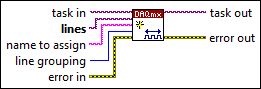
Inputs/Outputs
 task in
—
task in
—
task in specifies the task to which to add the virtual channels this VI creates. If you do not specify a task, NI-DAQmx creates a task for you and adds the virtual channels this VI creates to that task.  lines
—
lines
—
lines specifies the names of the digital lines or ports to use to create virtual channels. The DAQmx physical channel constant lists all lines and ports for devices installed in the system. You also can wire a string that contains a list or range of digital lines or ports to this input. Specifying a port and no lines is the equivalent of specifying all the lines of that port in order. Therefore, if you specify Dev1/port0 and port 0 has eight lines, this is expanded to Dev1/port0/line0:7. If you have an array of lines or ports, use the DAQmx Flatten Channel String VI to convert the array to a list. If you specify multiple lines, the order in which you specify the lines affects the order of the output with DAQmx Write. The first line specified is the most significant bit, and the last line specified is the least significant bit. Therefore, if the data you specify to write is 110, and the line order you specify is Dev1/port0/line0:2, the output is:
If the data you specify to write is 110 and the line order you specify is Dev1/port0/line2:0, line 2 is considered the most significant bit. Therefore, the output is:
 name to assign
—
name to assign
—
name to assign specifies a name to assign to the virtual channel this VI creates. If you do not wire a value to this input, NI-DAQmx uses the physical channel name as the virtual channel name. If you use this input to provide your own names for the virtual channels, you must use the names when you refer to these channels in other NI-DAQmx VIs and Property Nodes, such as the source input of the DAQmx Trigger VI. If you create multiple virtual channels with one DAQmx Create Virtual Channel VI, you can specify a comma-separated list of names to assign to the virtual channels. If you provide fewer names than the number of virtual channels you create, NI-DAQmx automatically assigns names to the virtual channels.  line grouping
—
line grouping
—
line grouping specifies how to group digital lines into one or more virtual channels. If you specify one or more entire ports with the lines input, you must set this input to one channel for all lines.
 error in
—
error in
—
error in describes error conditions that occur before this VI or function runs. The default is no error. If an error occurred before this VI or function runs, the VI or function passes the error in value to error out. If an error occurs while this VI or function runs, the VI or function runs normally and sets its own error status in error out. Use the Simple Error Handler or General Error Handler VIs to display the description of the error code. Use error in and error out to check errors and to specify execution order by wiring error out from one node to error in of the next node.  task out
—
task out
—
task out is a reference to the task after this VI runs. The task contains any newly created virtual channels. If you did not wire a value to task in, NI-DAQmx automatically creates the task this output refers to.  error out
—
error out
—
error out contains error information. If error in indicates that an error occurred before this VI or function ran, error out contains the same error information. Otherwise, error out describes the error status that this VI or function produces. Right-click the error out indicator on the front panel and select Explain Error from the shortcut menu for more information about the error. |