Set Report Header Text VI
- Updated2025-07-30
- 3 minute(s) read
Sets the text of the report header.
Header text for Microsoft Excel reports appears only when you print the report.
Use tokens with this VI to generate information in the headers. For example, you can insert a time stamp in the headers of the report.
You cannot use tokens with Microsoft Word and Excel reports.
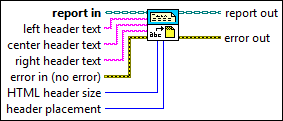
Inputs/Outputs
 report in
—
report in
—
report in is a reference to the report whose appearance, data, and printing you want to control. Use the Create Report VI to generate this LabVIEW class object.  left header text
—
left header text
—
left header text is the information you want to appear in the left side of the header.
center header text
—
center header text is the information you want to appear in the center portion of the header.
right header text
—
right header text is the information you want to appear in the right side of the header.  error in (no error)
—
error in (no error)
—
error in describes error conditions that occur before this node runs. This input provides standard error in functionality.  HTML header size
—
HTML header size
—
HTML header size is the HTML heading tag to use for the header. Use this parameter only for HTML reports.
header placement
—
header placement specifies the location of the header. Note If you insert a header in a Microsoft Word report, the header is added to all pages regardless of the placement specified.
 report out
—
report out
—
report out is a reference to the report whose appearance, data, and printing you want to control. You can wire this output to other Report Generation VIs.  error out
—
error out
—
error out contains error information. This output provides standard error out functionality. |