Create Easy Text Report VI
- Updated2025-07-30
- 6 minute(s) read
Allows you to pass in a block of text along with optional formatting information and print the report to a designated printer or publish the report to a specified file path.
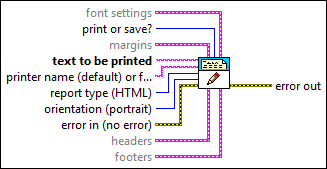
Inputs/Outputs
 font settings
—
font settings
—
font settings indicates the font settings a report uses.
 print or save?
—
print or save?
—
print or save? specifies whether the VI prints or saves the report. The default is print. Set this input to save if you specify a file path in printer name or file path.
margins
—
margins sets the page margins to use when printing the report.
 text to be printed
—
text to be printed
—
text to be printed is the information you want to include in the report. Any information you want to include must be in a string. Note If this string contains printing codes, the VI might not behave as expected. For example, the string \00 prints a blank page on some computers. If the VI does not behave as expected, make sure this string does not contain printer codes.
printer name (default) or file path (dialog)
—
printer name or file path is the name of the printer to which you want to print a report or the file path to which you want to send a report, depending on report type. If you specify a printer name, the printer must be configured for use with the computer from which you print the report. If you specify a file path, you must set the print or save? input to save. If you do not wire this input, the VI uses the default printer in LabVIEW. If you wire a file path, you must enter the path as a string or use the Path to String function. If you do not specify a path, LabVIEW displays error -41003.
report type (HTML)
—
report type is the type of report you want to create.
 orientation (portrait)
—
orientation (portrait)
—
orientation (Windows) specifies how the report appears when it prints.
 error in (no error)
—
error in (no error)
—
error in describes error conditions that occur before this node runs. This input provides standard error in functionality.
headers
—
headers specifies what information appears in the header of each page of the report.
footers
—
 error out
—
error out
—
error out contains error information. This output provides standard error out functionality. |
 charset (-1)
—
charset (-1)
—
 margins (1.00)
—
margins (1.00)
—
 top
—
top
—
 measurement system (default)
—
measurement system (default)
—
Use tokens with this VI to generate information in the report, such as in the headers and footers. For example, you can insert a time stamp in the footers of the report.
You cannot use tokens with Microsoft Word and Excel reports.
You cannot use this VI with any other Report Generation VIs. Also, this VI does not give you fine-grain control over the formatting of a report. You can use this VI to specify the text font, set the header and footer, set margins, specify a printer, and set the page orientation. This VI disposes of the report automatically, which frees memory space. However, you cannot control where information is placed, append information from another file, or clear the report of font styles, headers and footers, or text. Use the other Report Generation VIs to generate complicated reports, such as those with many different kinds of information.