Append VI List of Controls to Report (refnum) VI
- Updated2025-07-30
- 5 minute(s) read
Appends a list of controls and indicators of the VI you specify in VI to a report. Wire data to the VI input to determine the polymorphic instance to use or manually select the instance.
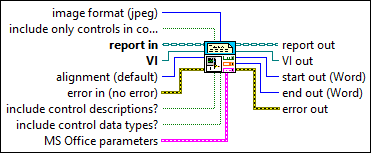
Inputs/Outputs
 image format (jpeg)
—
image format (jpeg)
—
image format sets the format in which to save the image.
 include only controls in con pane?
—
include only controls in con pane?
—
If include only controls in con pane? is TRUE, the report includes only connected controls and indicators. If FALSE (default), the report includes all controls and indicators.  report in
—
report in
—
report in is a reference to the report whose appearance, data, and printing you want to control. Use the Create Report VI to generate this LabVIEW class object.  VI
—
VI
—
VI is a reference to the VI whose data you want to append to the report. The default is a reference to the VI that contains this VI as a subVI.
alignment (default)
—
alignment sets the alignment of the image in a report. (Report Generation Toolkit) For Microsoft Word reports, you can use only the LEFT, RIGHT, and MIDDLE options.
 error in (no error)
—
error in (no error)
—
error in describes error conditions that occur before this node runs. This input provides standard error in functionality.
include control descriptions?
—
If include control descriptions? is TRUE, the report includes control and indicator descriptions. The default is FALSE.
include control data types?
—
If include control data types? is TRUE, the report includes control and indicator data types. The default is FALSE.  MS Office parameters
—
MS Office parameters
—
MS Office parameters (Report Generation Toolkit) specifies the point in a Microsoft Word or Excel report where you want an insertion to occur. The VI ignores this input for HTML reports. You can specify a bookmark in Word or a named range or cell coordinates in Excel. If you set the report type to Word but do not specify a bookmark, the insertion occurs at the end of the document.
 report out
—
report out
—
report out is a reference to the report whose appearance, data, and printing you want to control. You can wire this output to other Report Generation VIs.  VI out
—
VI out
—
VI out returns VI unchanged.  start out (Word)
—
start out (Word)
—
start out (Report Generation Toolkit) represents the index of the character at the beginning of the text inserted in the Microsoft Word document. The VI ignores this input for HTML reports.
end out (Word)
—
end out (Report Generation Toolkit) represents the index of the character at the end of the text inserted in the Microsoft Word document. The VI ignores this input for HTML reports.  error out
—
error out
—
error out contains error information. This output provides standard error out functionality. |
 position (Excel)
—
position (Excel)
—
 row
—
row
—
 name (Excel)
—
name (Excel)
—