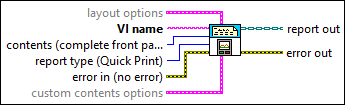
Prints a front panel or VI documentation or saves the front panel or VI documentation to a report.

icon

Inputs/Outputs

  • ccclst.png layout options

    layout options sets the page layout and printing options for the report, if report type is Quick Print. Otherwise, LabVIEW ignores this input.

  • cu16.png orientation (unchanged)

    orientation specifies the page orientation of the report.

    You also can use the Printing:Page Orientation property to set the page orientation programmatically.

    0Unchanged (default)—Uses the default setting for the VI.
    1Portrait—Prints the report so the short edge of the paper is the top of the page.
    2Landscape—Prints the report so the long edge of the paper is the top of the page.
  • cu16.png panel scaling for page (unchanged)

    panel scaling for page sets whether to scale the front panel so it fits on the printed page.

    You also can use the Printing:Front Panel Scaling? property to set the scaling option programmatically.

    0Unchanged (default)—Uses the default setting for the VI.
    1No Scaling—Does not scale the front panel to fit on the printed page.
    2Scale front panel to fit—Scales the front panel to fit on the printed page.
  • ccclst.png margins

    margins sets the page margins of the printed report and the units of measurement for the margins.

    You also can use the Printing:Margins property to set the page margins programmatically.

  • cbool.png override VI margins (false)

    If override VI margins is TRUE, the VI uses the margins you set in margins. If FALSE (default), the VI uses the default margins for the VI.

  • cnclst.png margins (1.00)

    margins sets the size of the page margins. The default is 1.00 for each margin.

    If the margins are smaller than the minimum margins for the printer, the VI returns an error.

  • cdbl.png top

    top sets the distance in inches or centimeters between the top of the page and the top of the content on the page.

  • cdbl.png left

    left sets the distance in inches or centimeters between the left edge of the page and the left edge of the content on the page.

  • cdbl.png right

    right sets the distance in inches or centimeters between the right edge of the page and the right edge of the content on the page.

  • cdbl.png bottom

    bottom sets the distance in inches or centimeters between the bottom of the page and the bottom of the content on the page.

  • cu16.png measurement system (default)

    measurement system sets the units of measurement for the margins.

    0Default—Sets the margins in inches.
    1US—Sets the margins in inches.
    2Metric—Sets the margins in centimeters.
  • ccclst.png printer options

    printer options sets the printer to use and the printer options.

    The VI uses this input only if report type is 0.

  • cstr.png destination printer name (current)

    destination printer name is the name of the printer to which you want to print the report.

    If you wire a printer name, that printer must be configured for use with the computer from which you want to print the report.

    If you do not wire a printer name, the VI uses the default printer in LabVIEW. The computer from which you want to print must have a default printer.

    You can use the Query Available Printers VI to obtain a list of the printers available on the computer, including the default printer in LabVIEW.

  • cu16.png printing method (unchanged)

    printing method sets how LabVIEW prints the report.

    This input is similar to the Standard printing, PostScript printing, and Bitmap printing buttons on the Printing page of the Options dialog box.

    You also can use the Printing:Method property to set how LabVIEW prints programmatically.

    0Unchanged (default)—Uses the default setting for LabVIEW.
    1Standard—Uses standard printing.
    2PostScript—Uses PostScript printing.
    3Bitmap—Uses bitmap printing.
  • cu16.png color or monochrome (unchanged)

    color or monochrome sets whether to send color/grayscale or monochrome output to the printer.

    This input is similar to the Color/Grayscale printing checkbox on the Printing page of the Options dialog box.

    You also can use the Printing:Color/Grayscale? property to configure the colors of the output programmatically.

    0Unchanged (default)—Uses the default setting for LabVIEW.
    1Color/grayscale—If the printer is a color printer, LabVIEW sends color output to the printer. Otherwise, LabVIEW sends grayscale output to the printer.
    2Monochrome—Sends monochrome output to the printer.
  • ccclst.png page header options

    page header options sets whether to print page headers and configures the contents of the headers.

  • cu16.png page headers (unchanged)

    page headers sets whether to print page headers for the report.

    You also can use the Printing:Page Headers? property to print page headers programmatically.

    0Unchanged (default)—Uses the default setting for the VI. If you wire this value, the VI ignores the page header content options input.
    1Include page headers—Prints headers for the report using the values you wire to the page header content options input.
    2Do not include page headers—Prints no headers for the report.
  • ccclst.png page header content options

    page header content options sets which data to include in the page headers.

    If page headers is 0, the VI ignores this input.

    You also can use the Printing:Header Content properties to customize the contents of the headers programmatically.

  • cbool.png Include VI Name

    If Include VI Name is TRUE (default), the report headers include the VI name.

  • cbool.png Include VI Path

    If Include VI Path is TRUE (default), the report headers include the VI path.

  • cbool.png Include Last Modification Date

    If Include Last Modification Date is TRUE (default), the report headers include the last modification date.

  • cbool.png Include Date Printed

    If Include Date Printed is TRUE (default), the report headers include the date printed.

  • cbool.png Include Page Number

    If Include Page Number is TRUE (default), the report headers include the page number.

  • cbool.png Include VI Icon

    If Include VI Icon is TRUE (default), the report headers include the VI icon.

  • cstr.png VI name

    VI name is the name of the VI you want to print or save to a report. The VI must be in memory.

  • cu16.png contents (complete front panel)

    contents sets which data to print or include in the report.

    0Complete front panel (default)—Prints the entire front panel.
    1Visible portion of front panel—Prints only the currently visible portion of the front panel.
    2Icon, description, panel and diagram—Prints the VI description, icon and connector pane, front panel, and block diagram.
    3Documentation: Using the panel—Prints the VI description, front panel, and controls and indicators, including data types, names, and descriptions. LabVIEW prints the controls and indicators in tabbing order.
    4Documentation: Using as a subVI—Prints the VI description, icon and connector pane, and connected controls and indicators, including data types, names, and descriptions. LabVIEW prints the controls and indicators in tabbing order. This format is similar to the format of the VI and function reference topics in the LabVIEW Help.
    5Documentation: Complete—Prints the VI description, icon and connector pane, front panel, controls and indicators, including data types, names, and descriptions, block diagram, a list of subVIs, including icons, names, and paths, revision history information, and the VI hierarchy.
    6Documentation: Custom—Uses the values you wire to custom contents options to determine which data to print.
  • cenum.png report type (Quick Print)

    report type sets the type of report you want to create.

    0Quick Print (default)—Prints the report immediately.
    1Excel (Report Generation Toolkit)—Creates a report in Excel and returns a reference to it in report out so you can use other Report Generation VIs to customize, save, or print the report.
    2Word (Report Generation Toolkit)—Creates a report in Word and returns a reference to it in report out so you can use other Report Generation VIs to customize, save, or print the report.
    3HTML—Creates an HTML report and returns a reference to it in report out so you can use other Report Generation VIs to customize, save, or print the report. When an HTML report is saved, a JPEG file is created and saved along with the HTML file.
    4Standard Report (Windows)—Creates a report and returns a reference to it in report out so you can use other Report Generation VIs to customize or print the report.
  • cerrcodeclst.png error in (no error)

    error in describes error conditions that occur before this node runs. This input provides standard error in functionality.

  • ccclst.png custom contents options

    custom contents options sets which data to print or include in the report if you set contents to Documentation: Custom.

    You also can use the Printing:Custom properties to set which data to print programmatically.

  • cbool.png include VI connector and icon

    If include VI connector and icon is TRUE, the report includes the VI icon and connector pane. The default is FALSE.

  • cbool.png include VI description

    If include VI description is TRUE, the report includes the VI description. The default is FALSE.

  • cbool.png include front panel

    If include front panel is TRUE, the report includes the front panel. The default is FALSE.

  • cbool.png surround front panel with border

    If surround front panel with border is TRUE, the VI prints a border around the front panel. The default is FALSE.

  • ccclst.png list of controls options

    list of controls options sets whether to include a list of controls and indicators in the report and sets the data to include in the list.

  • cbool.png include list of controls

    If include list of controls is TRUE, the report includes a list of controls and indicators. The default is FALSE.

  • cu16.png list which controls?

    list which controls? sets which controls and indicators to include in the list.

    0all controls (default)—Prints all controls and indicators.
    1connected controls—Prints only connected controls and indicators.
  • cbool.png include control descriptions?

    If include control descriptions? is TRUE, the report includes control and indicator descriptions. The default is FALSE.

  • cbool.png include control data types?

    If include control data types? is TRUE, the report includes control and indicator data types. The default is FALSE.

  • ccclst.png block diagram options

    block diagram options sets whether to include the block diagram in the report and how to print structures on the block diagram.

  • cbool.png include block diagram

    If include block diagram is TRUE, the report includes the block diagram. The default is FALSE.

  • cbool.png hidden frames

    If hidden frames is TRUE, the block diagram image includes all visible subdiagrams of each Case, Event, and Stacked Sequence structure, followed by all hidden subdiagrams for each structure. If FALSE (default), the image includes only visible subdiagrams.

  • cbool.png ordered (repeat from higher level if nested)

    If ordered is TRUE, the block diagram image includes all visible subdiagrams of each Case, Event, and Stacked Sequence structure, followed by all subdiagrams for each structure in order, including visible and hidden subdiagrams. If FALSE (default), the image does not repeat visible subdiagrams in the ordered list of subdiagrams.

    If Hidden frames is FALSE, the VI ignores this input.

  • cbool.png include VI hierarchy

    If include VI hierarchy is TRUE, the report includes the VI hierarchy. The default is FALSE.

  • cbool.png include list of subVIs

    If include list of subVIs is TRUE, the report includes a list of subVIs, including icons, names, and paths. The default is FALSE.

  • cbool.png include VI history

    If include VI history is TRUE, the report includes revision history information. The default is FALSE.

  • cbool.png include Express VI configuration information

    If include Express VI configuration information is TRUE, the report includes configuration information for any Express VIs on the block diagram. The default is FALSE.

  • iNI__reportlvclass.png report out

    report out is a reference to the report whose appearance, data, and printing you want to control.

    You can wire this output to other Report Generation VIs.

  • ierrcodeclst.png error out

    error out contains error information. This output provides standard error out functionality.

  • If a front panel is not visible, LabVIEW does not update the values in the objects on the front panel. If you call a VI whose front panel is not visible and you use the Print VI Panel or Documentation VI to create an image of the front panel, the image does not reflect any value changes that occurred when you ran the VI.

    If you want the image to reflect value changes, make sure the front panel is open before any values change. If you do not want to display the front panel but want the image to reflect value changes, create a Property Node from any front panel terminal on the block diagram of the VI for which you want to create a front panel image.

    You also can use the Front Panel:Get Image and Get Panel Image Scaled methods to return a front panel image programmatically. Use the VI Documentation VIs to print specific components of VI documentation or to save the components to a report.