File Dialog
- Updated2025-07-30
- 6 minute(s) read
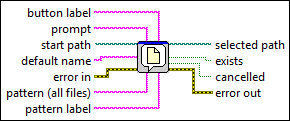
Displays a dialog box with which you can specify the path to a file or directory.
You can use this dialog box to select existing files or directories or to select a location and name for a new file or directory.
(macOS) This VI does not recognize macOS-specific means of specifying the default application for a file. However, you can use the pattern input to specify a file type for files that include an extension to the filename.
Dialog Box Options
| Option | Description |
|---|---|
| Limit selection to single item | The user can select one or more files. When you de-select this option, the options for the types of files or folders the user can select appear dimmed.
|
| Allow selection of files in LLBs and packed project libraries | Specifies that you can select a file from an LLB or a packed library. If this checkbox does not contain a checkmark, you can select an LLB or a packed library but you cannot select a file in an LLB or a packed library. Note To select an LLB or packed library using the File Dialog Express VI, you can remove the checkmark from the Allow selection of files in LLBs and packed project libraries checkbox and select the LLB or packed library from the file dialog box. You also can place a checkmark in the Allow selection of files in LLBs and packed project libraries checkbox, select the Files or Folders option button, choose an LLB or packed library from the file dialog box, and select the second folder icon from the file list in the second file dialog box that appears. |
Inputs/Outputs
 button label
—
button label
—
For example, if you select Files only in the configure dialog box, the user must select an existing file to which to append data, so you might want to wire Append to button label. If button label is longer than the width of the button, the file dialog box does not display the entire label. For example, in an English version of Windows, the button is approximately 11 characters wide.
pattern (all files)
—
Restricts the files displayed in the dialog box to those whose name matches pattern (all files). pattern (all files) does not restrict the directories displayed. The pattern matching in this VI is similar to the matching used in matching wildcards in Windows and Linux filenames. If you specify characters other than the question mark character (?) or the asterisk character (*), the VI displays only files or directories that contain those characters. You can use the question mark character (?) to match any single character. You can use the asterisk character (*) to match any sequence of zero or more characters. For example, a pattern (all files) of *.vi;test*.llb returns matches for any file with a .vi extension and any file whose filename begins with test and has a .llb extension. To match multiple patterns, use a semicolon ( ; ) to separate the patterns. White space, such as blanks, tabs, and carriage returns, are taken literally. Avoid using white spaces unless they are part of the extension pattern. For example, if you use *.html;*.doc, the dialog box displays all files that end with .html and .doc. If you use *.html; *.doc, the dialog box displays only files that end with .html.  start path
—
start path
—
Path of the directory whose contents LabVIEW initially displays in the dialog box. If start path is valid, but does not refer to an existing directory, LabVIEW strips names from the end of the path until the path is a valid directory path or an empty path. If start path is invalid or unwired, the last directory viewed in a file dialog box initially appears in the dialog box.
default name
—
Name you want to appear as the initial file or directory name in the dialog box. The default is an empty string.  error in
—
error in
—
Describes error conditions that occur before this node runs.
prompt
—
Custom message that appears as the title of the file dialog box. (Windows and Linux) The default dialog box title is Choose or Enter Path of File. (macOS) The default dialog box title is Select File or Create New File.
pattern label
—
Label to display in the file dialog box next to the custom pattern. If you do not wire this input or it contains an empty string, the default label next to any custom pattern is Custom Pattern. If you do not wire a string to pattern, LabVIEW ignores this input.  error out
—
error out
—
Contains error information. This output provides standard error out functionality.  selected path
—
selected path
—
Full path to the file or directory selected using this dialog box. If you cancel the dialog box, this VI sets selected path to <Not A Path>. This output is available if you place a checkmark in the Limit selection to single item checkbox in the Configure File Dialog dialog box.  exists
—
exists
—
Is TRUE if selected path specifies an existing file or directory.
cancelled
—
Is TRUE if you cancel the dialog box.  selected paths
—
selected paths
—
Contains the full path names to the files or directories selected using this dialog box. This output is available if you do not place a checkmark in the Limit selection to single item in the Configure File Dialog dialog box. |