Understanding the Driver VI (Simulation Interface Toolkit)
- Updated2023-02-21
- 6 minute(s) read
The driver VI contains the code that communicates between the host VI and the target on which you run a simulation. This VI consists of a top-level driver VI, modelname_driver.vi, and a support library, modelname_IO.llb. modelname is the name of the model DLL. These VIs and LLBs exist in the project directory you specified in the SIT Connection Manager dialog box.
 |
Note Refer to the labview\examples\Simulation Interface\Sine Wave\ directory for an example of this structure. |
After you click the OK button in the SIT Connection Manager dialog box, the LabVIEW Simulation Interface Toolkit creates a driver VI unique to that simulation. The driver VI contains values you specified for the model, such as timing information, and the mappings you created between the model and any I/O hardware on the RT target.
|
Note You can use the SIT Connection Manager dialog box to generate a driver VI only for certain hardware device configurations. To run a simulation that uses an unsupported hardware configuration, you can create a custom driver VI. |
The Simulation Interface Toolkit uses a template, located in the labview\vi.lib\addons\Simulation Interface\_ConnectionManager\scriptdriver\templates directory, to create this driver VI. This template creates a top-level driver VI that executes the following steps:
- Initializes the model DLL.
- Starts the SIT Server on the RT target.
- Initiates data logging and playback.
- Configures timing parameters.
- Calls the IO Base Rate Loop VI, which transfers data to and from the hardware inputs and outputs.
- Finalizes the model DLL.
The Front Panel of the Driver VI
The front panel of the driver VI contains the following controls that affect the simulation.
|
Note To save the current value of a control as a default value, right-click the control and select Data Operations»Make Current Value Default. Setting default values ensures you do not have to edit the driver VI each time you run the same simulation. You can configure the following options by using the Driver VI Buffer Settings dialog box. |
- number of signals—Specifies the maximum number of signals that the simulation probes. For example, if you know that a model only has ten signals, set the value of this control to 10. The default value for this control is 50.
- num data points—Specifies the maximum width of the data buffer that probes the model signals. The total width of all the signals you want to probe must be less than or equal to the width of this data buffer. The width of a signal is equal to the total number of elements in a signal. The default value of this control is 100.
For example, a 2×2 array has a width of 4. If you want to probe 25 of these signals, the total width equals 100. Because 100 is the width of the data buffer, the driver VI probes all the signals. If you added a 26th signal to probe, the total width equals 104, which exceeds the width of the data buffer. The simulation does not return probed data for the 26th signal.
The num data points control has a large impact on the performance of the simulation. If you set the value of num data points too high, the Simulation Interface Toolkit allocates buffer space for signals that do not exist. This allocation wastes system resources and reduces the ability of the simulation to execute in real time. If you set the value of num data points too low, you cannot probe all the signals you want to. To maximize simulation performance, determine the maximum width of model signals that you want to probe in one time step. Then, set num data points to the lowest possible value. You also can improve simulation performance by decimating the simulation data. - circular buffer size—Specifies the depth of the data buffer. The default value for this control is 1000.
- Start Server?—Specifies if the SIT Server starts when you run the simulation. If you set this switch to FALSE, you cannot use the host VI to communicate with the simulation. In this situation, the driver VI starts the simulation immediately on execution. The default value of this switch is TRUE, which allows you to use the host VI to communicate with the simulation. In this situation, the driver VI waits for the Run command from the host VI before starting the simulation.
The IO Base Rate VI
The block diagram of the driver VI includes the IO Base Rate Loop VI, which is circled in the following figure.
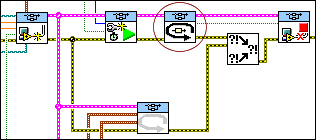
Like the driver VI, the Simulation Interface Toolkit creates the IO Base Rate Loop VI from a template in the labview\vi.lib\addons\Simulation Interface\_ConnectionManager\scriptdriver\templates directory. The IO Base Rate template is sit Base Rate Loop.vi. This template creates a VI named modelname_IO IO Base Rate Loop.vi.
The IO Base Rate Loop VI contains the following four custom VIs:
- modelname_IO IO Init.vi
- modelname_IO IO Read.vi
- modelname_IO IO Write.vi
- modelname_IO IO Close.vi
|
Note The templates for these VIs also are located in the labview\vi.lib\addons\Simulation Interface\_ConnectionManager\scriptdriver\templates directory |
If you previously created a driver VI, the Simulation Interface Toolkit generates these VIs when you click the OK button on the SIT Connection Manager dialog box. The block diagram code in these VIs depends on the mappings you create between the model DLL and any hardware devices. If you did not previously create a driver VI, the Simulation Interface Toolkit uses a template for the VIs.
The following figure shows these VIs, circled from left to right, on the block diagram of the IO Base Rate Loop VI.

The IO Base Rate Loop VI uses these four VIs to execute the following steps:
- Initialize the simulation.
- Execute the following steps for the duration of the simulation.
- Read data from the hardware inputs.
- Run the SIT Scheduler VI, which takes the hardware input values, runs a single step of the simulation, and receives output values from the simulation.
- Probe the values of the model DLL and send these values to the SIT Server.
- Write the values the model DLL returns to the hardware outputs.
- Perform any commands the host VI sends.
- Free hardware resources after the simulation finishes.
How the Driver VI Schedules Simulations
Single-rate simulations use only the IO Base Rate Loop, located on the block diagram, to control the timing of the simulation. However, multirate simulations use additional Timed Loops. Because each model task might have a different time step, the Scheduler Loop runs at the base rate of the simulation, which is the greatest common divisor of all the discrete time steps in the simulation. For example, if a multirate simulation contains two discrete tasks, one with a time step of 100 microseconds and one with a time step of 500 microseconds, the base rate is 100 microseconds. The Scheduler Loop then uses 100 microseconds as the time step of the simulation.
The Simulation Interface Toolkit uses rate-monotonic scheduling to prioritize different model tasks in the same model. Rate-monotonic scheduling gives higher priority to model tasks that have shorter time steps. A higher-priority task can interrupt a lower-priority task.
To view detailed information about each task in a multirate simulation, run the host VI and click the Simulation Details front panel button to launch the Simulation Details dialog box.