Part 1: Testing the FEA Model (Electric Motor Simulation Toolkit)
- Updated2023-02-21
- 2 minute(s) read
To get prepared with the FEA model simulation, you need to test the model function by reading an RTT file with LabVIEW. You can either download RTT files at www.jmag-international.com or create an RTT file by using the JMAG-RT software.
Complete the following steps to read the RTT file and test the FEA model function.
- Open the PMSM Open Loop Simulation VI in the labview\examples\Electric Motor Simulation\PMSM\PMSM Open Loop Simulation directory.
 Open example
 Find related examples
 - On the block diagram, specify an RTT file to the input of the Read PMSM RTT File VI. For this example, use the 1k_S_D_IV.rtt file in the labview\examples\Electric Motor Simulation\PMSM\_RTT Files directory.
- Run the PMSM Open Loop Simulation VI.
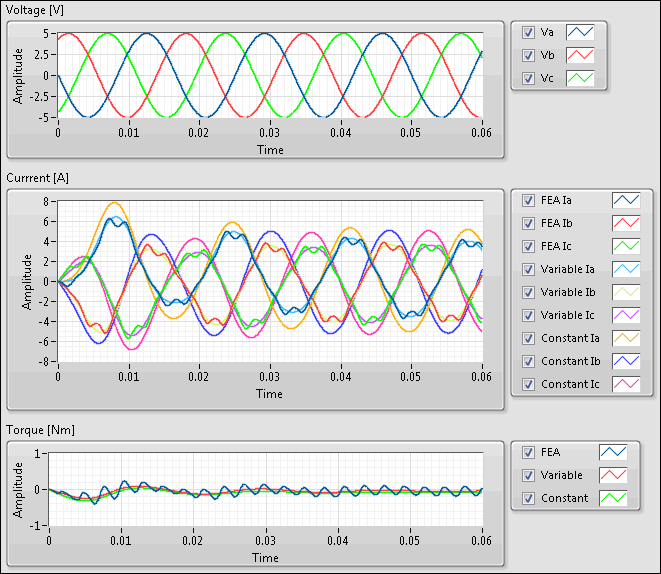
- On the front panel, observe the results returned from the Voltage [V] indicator. You can see that the input voltage is three-phase alternating voltage.
- On the front panel, the output of three-phase current for the three model functions displays in different colors. Select the FEA Ia, FEA Ib, and FEA Ic channels to see the simulated current output with the FEA model.
- Observe the results returned from the Torque [Nm] indicator. Choose the FEA channel to see the simulated torque output with the FEA model.
When you run this example, the output voltage, current, and torque appear as shown in the following screenshot.
Related Information
 Part 2: Testing the Control Algorithms Part 2: Testing the Control Algorithms |